Configure Meal Plan Selection
Last updated: October 5, 2026
Meal plan configuration happens in two stages: first create your meal plans globally in Setup > Meal > Meal Plans, then associate them with specific housing cycles and configure selection windows, visibility rules, and billing settings. This ensures each cycle has the right meal plan options with appropriate dates and restrictions.
Before you begin: Meal plans must be created globally before you can add them to a housing cycle. You'll need the manageMealPlans permission and active billing codes configured.
Navigate to Housing Cycle Meal Plans
From the Admin Dashboard, go to Setup > Housing Cycles. Click the name of the housing cycle you want to configure.
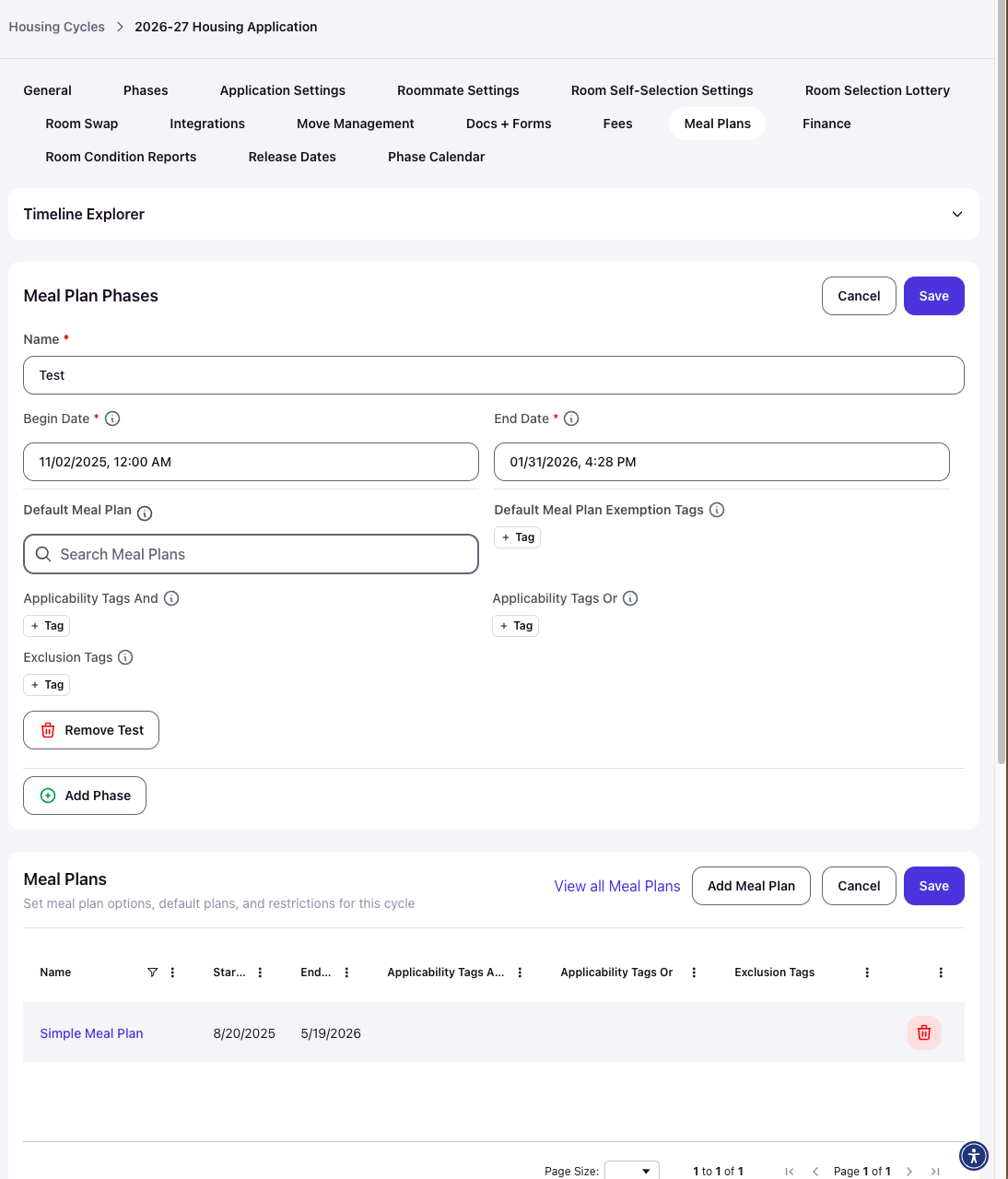
Click the Meal Plans tab from the cycle navigation. Click Edit in the top right to begin configuration.
Add Meal Plans to the Cycle
Meal plans created globally won't automatically appear in housing cycles. Click Add Meal Plan to open the selection modal.
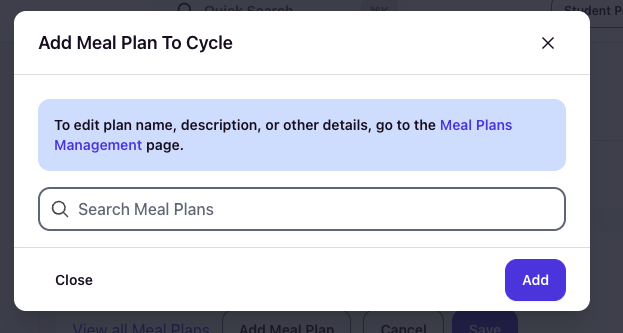
Search for and select the meal plan you want to add to this cycle. The modal shows only unused meal plans that haven't been added yet.
Configure Per-Plan Selection Dates
After selecting a meal plan, you must configure when students can view and select that plan within this specific housing cycle.
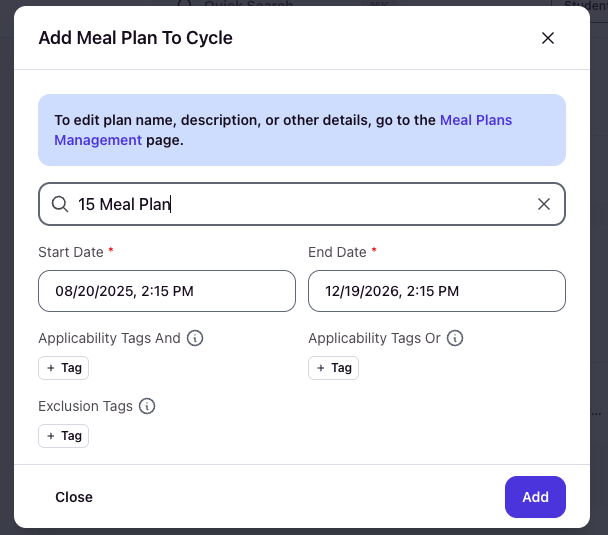

Start Date — The date and time when this meal plan becomes visible and selectable for students in this cycle. Must fall within the cycle's residence dates.
End Date — The date and time when student selection closes for this meal plan in this cycle. Students cannot select the plan after this time. Must be later than the Start Date and within cycle dates.
These dates control the selection window for this specific plan in this specific cycle. Different cycles can have different selection windows for the same global meal plan.
Set Applicability and Exclusion Tags (Optional)
After setting dates, you can restrict which students see this meal plan using tags.
Applicability Tags And — Students must have all tags in this field to see the meal plan. Use this for strict requirements where multiple conditions must be met.
Applicability Tags Or — Students need at least one tag from this field to see the meal plan. Use this when any of several conditions grants access.
Exclusion Tags — Students with any tag in this field will not see the meal plan, even if they meet applicability requirements. Use this to exempt specific groups.
Click Add to save the meal plan with its dates and tags. Repeat this process for each meal plan you want to offer in the cycle.
Configure Cycle-Wide Meal Plan Settings
Below the meal plans table, configure how all meal plans behave in this cycle using the Meal Plans Settings card. Each setting has a Yes/No dropdown.
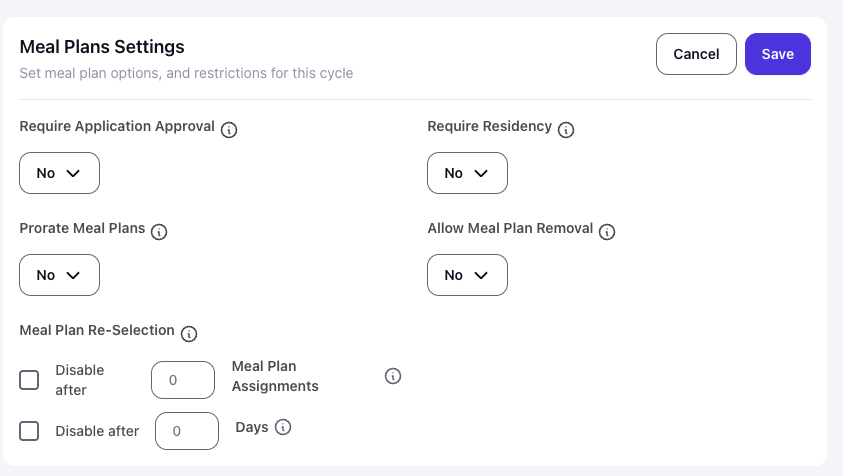
Require Application Approval — When set to Yes, students cannot see or select any meal plans until their housing application is approved. Set to No to make meal plans visible immediately, even before application approval.
Require Residency — When set to Yes, students must have an active residency assignment in the cycle before they can view or select meal plans. Set to No to allow meal plan selection without a residency assignment.
Prorate Meal Plans — When set to Yes, meal plans selected after their configured Start Date will have costs adjusted based on the remaining time in the plan period. Set to No to charge the full rate regardless of when the student selects the plan.
Allow Meal Plan Removal — When set to Yes, students can remove their meal plan assignment during the selection period. Set to No to prevent students from removing meal plans once assigned. This interacts with default meal plan settings.
Set Re-Selection Limits (Optional)
You can limit how many times students can change their meal plan selection using two optional restrictions.
Disable after X Meal Plan Assignments — Check this box and enter a number (minimum 1). Students can make only that many meal plan changes total before the system blocks further selections. For example, entering 2 allows students to select a plan, change it once, then locks them in.
Disable after X Days — Check this box and enter a number of days (minimum 1). Students can only change their meal plan within that window after making their first selection. For example, entering 7 allows changes for one week after initial selection, then locks the choice.
These limits prevent excessive meal plan swapping while giving students reasonable flexibility. Administrators can still manually change assignments regardless of these limits.
Configure Default Meal Plans Using Phases
Default meal plans automatically assign to eligible students who don't make a selection by a specific deadline. This ensures required students have meal plans without manual intervention. Defaults are configured using Meal Plan Phases, which define the assignment rules, timeline, and exemptions.
Understanding Default Meal Plan Behavior
When a Meal Plan Phase with a default is active, Housing.Cloud monitors eligible students during the phase period. At the phase End Date, the system automatically assigns the configured default meal plan to any student who:
- Has an approved housing application (if Require Application Approval is enabled)
- Has not already selected a meal plan during the phase
- Meets the phase's Applicability Tag requirements (And/Or logic)
- Does not have any Default Meal Plan Exemption Tags
- Is not excluded by Exclusion Tags
The assignment creates a meal plan record, generates a prorated transaction if Prorate Meal Plans is enabled, and logs the action in the student's activity history as "MEAL_PLAN_ASSIGNED".
Create a Meal Plan Phase
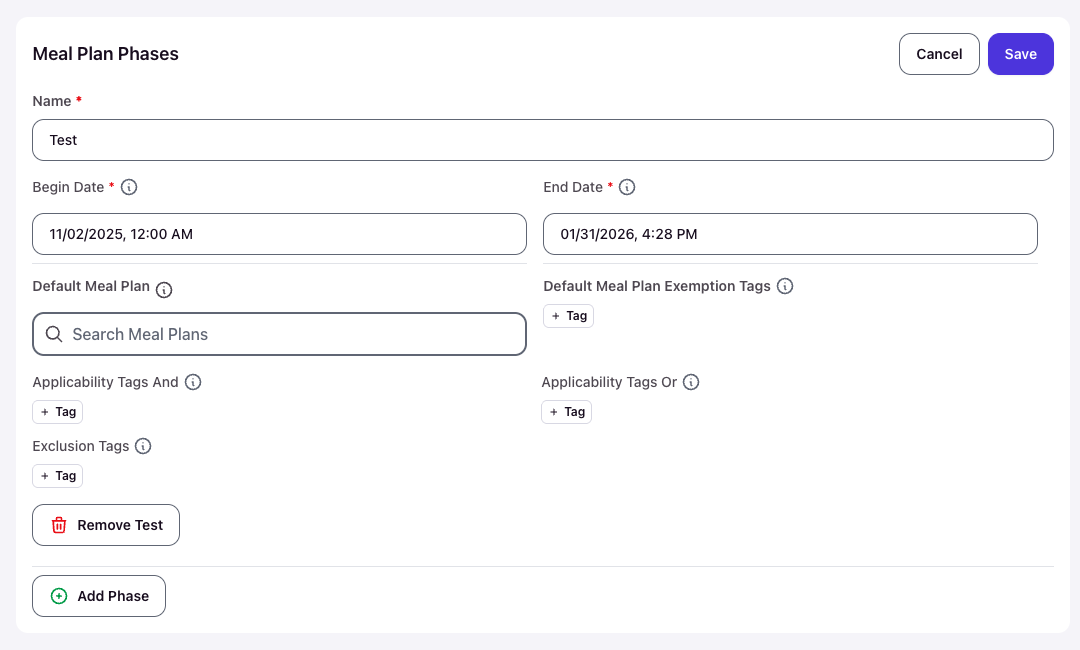
In the Meal Plans tab of your housing cycle, scroll to the Meal Plan Phases card and click Add a new meal plans phase.
Configure the Default Meal Plan
Default Meal Plan — Search and select which meal plan will be automatically assigned from the plans you've added to this cycle. The dropdown shows only meal plans that have been associated with the current housing cycle.
Choose No Default Selected if you want this phase to allow optional meal plan selection without automatic assignments. Students who don't select will simply not have a meal plan assigned.
Set Exemption Tags
Default Meal Plan Exemption Tags — Students who have any tag in this field will not receive the default assignment, even if they meet all other eligibility criteria and don't select a plan.
Use exemption tags to exclude specific populations from automatic assignments, such as:
- Commuter students who don't need meal plans
- Off-campus residents
- Students with dietary medical exemptions
- International students with alternative arrangements
When the field shows "Applies to all students", no exemptions are configured and all eligible students will receive the default.
Tag conflicts trigger a warning banner: "There are conflicting tags between the cycle meal plan tags and the default meal plan exemption tags." Review your tag logic if this appears, as students may be blocked from both self-selection and default assignment.
Understanding Tag Layers and Interactions
Meal plan visibility and default assignments rely on three independent layers of tag logic that work together. Each layer filters students sequentially, and all three must pass for a student to receive a default meal plan assignment. Understanding these interactions prevents configuration errors and unexpected access issues.
Layer 1: Phase-Level Eligibility Tags
The Meal Plan Phase has its own Applicability Tags And, Applicability Tags Or, and Exclusion Tags. These determine which students are eligible to participate in the phase at all—both for self-selection and for default assignment consideration.
Applicability Tags And — Students must have all tags listed to be phase-eligible. Use this when multiple conditions are required simultaneously (e.g., "First-Year" AND "On-Campus").
Applicability Tags Or — Students need at least one tag from this field to be phase-eligible. Use this when any of several conditions grants access (e.g., "First-Year" OR "Transfer").
Exclusion Tags — Students with any tag in this field are excluded from the entire phase, even if they match applicability requirements. This overrides all other phase logic.
If a student fails phase-level tag requirements, they see "No eligible meal plan phases found" in the Resident Portal and cannot self-select or receive defaults from this phase.
Layer 2: Per-Plan Eligibility Tags
Each individual meal plan added to the cycle has its own Applicability Tags And, Applicability Tags Or, and Exclusion Tags configured when you click Add Meal Plan.
These tags filter which specific meal plans a phase-eligible student can see and select. A student must first pass the phase-level tags (Layer 1), then each meal plan is independently evaluated against its own tags.
For example, if a phase has no tags (all students eligible) but individual plans have tags like "Vegetarian" or "Athlete", only students with those tags will see those specific plans. Students without matching tags will see an empty meal plan list despite being phase-eligible.
Layer 3: Default Meal Plan Exemption Tags
Default Meal Plan Exemption Tags are configured within each Meal Plan Phase and control only automatic default assignments at the phase End Date.
These tags work in reverse: students who have any tag in this field will not receive the default assignment, even if they are phase-eligible (Layer 1), can see meal plans (Layer 2), and haven't made a selection.
When the field shows "Applies to all students", no exemptions exist and all eligible students without a selection receive the default. If you add tags like "Commuter" or "Medical-Exempt", students with those tags skip the default assignment.
Tag Evaluation Order
When a student accesses meal plans or when the phase End Date triggers default assignments, Housing.Cloud evaluates tags in this exact sequence:
- Phase eligibility check — Does the student pass the phase's Applicability Tags And/Or and not have any Exclusion Tags? If no, stop (student sees "No eligible meal plan phases found").
- Per-plan filtering — For each meal plan in the cycle, does the student pass that plan's Applicability Tags And/Or and not have any Exclusion Tags? Only matching plans appear in the student's dropdown.
- Default assignment check (at phase End Date) — If the student is phase-eligible (Step 1), has not selected a plan, and does not have any Default Meal Plan Exemption Tags, assign the phase's default meal plan.
All three layers must pass independently. They do not override each other—they stack additively as filters.
Tag Conflict Warnings
When you configure tags, Housing.Cloud detects potential conflicts and displays a yellow warning banner: "There are conflicting tags between the cycle meal plan tags and the default meal plan exemption tags."
This warning appears when your tag configuration creates logical contradictions, such as:
- A Default Meal Plan Exemption Tag that is required for a meal plan's Applicability Tags And (exempting students who are the only ones who can select the plan)
- Phase Applicability Tags that contradict per-plan Exclusion Tags
- Exemption tags that match required phase eligibility tags
This warning does not block you from saving the configuration, but indicates students may experience unexpected behavior—such as being unable to self-select any plans or being ineligible for defaults despite appearing eligible.
Review your tag logic carefully when this warning appears. Ensure phase tags, per-plan tags, and exemption tags work together logically to achieve your intended student access rules.
Common Tag Configuration Patterns
Required meal plans for specific populations:
- Phase Applicability Tags And: "First-Year"
- Per-plan tags: None (all phase-eligible students see all plans)
- Default Meal Plan Exemption Tags: "Commuter" (first-years must have a plan unless commuting)
Optional meal plans with targeted defaults:
- Phase tags: None (all students eligible)
- Per-plan Applicability Tags Or: "Athlete", "Greek" (only these groups see certain plans)
- Default Meal Plan Exemption Tags: "Off-Campus" (default applies to everyone except off-campus students)
Multiple populations, different rules:
- Phase 1 Applicability: "First-Year", Default: "Unlimited Plan", Exemption: "Commuter"
- Phase 2 Applicability: "Upperclass", Default: "No Default Selected" (optional)
Each phase evaluates independently, allowing different rules for different student groups within the same cycle.
Multiple Phases and Strategic Defaults
You can create multiple Meal Plan Phases per cycle, each with different Begin/End dates, defaults, and tag rules. This enables sophisticated scenarios:
- Phase 1 (July 1 - Aug 1): First-year students required, defaults to "Unlimited Meals", exemption tag "Commuter"
- Phase 2 (July 15 - Aug 15): Upperclass students optional, no default selected
- Phase 3 (Aug 1 - Sep 1): Late applicants required, defaults to "Basic Plan"
Each phase runs independently. Students are evaluated against every active phase's eligibility criteria.
Default Re-Application After Removal
If Allow Meal Plan Removal is set to Yes at the cycle level, students can remove their meal plan assignment during the selection period using the "Remove Plan" button in the Resident Portal.
When a student removes their meal plan and the Meal Plan Phase End Date is reached, the default meal plan will automatically re-apply if the student still meets eligibility criteria. This prevents students from bypassing required meal plans by removing their selection.
Students are subject to re-selection limits (max attempts or max days) even when removing plans. Once limits are exceeded, students cannot make further changes, but the default will still apply at the phase End Date if they have no meal plan.
Administrators can manually change or remove meal plan assignments at any time regardless of phase dates, re-selection limits, or default settings. Phase-based defaults only affect student self-service behavior.
Student Visibility of Defaults
During an active Meal Plan Phase, students see available meal plans in the Resident Portal under Meal Plans. The default meal plan for the phase is marked with a star icon and labeled "Default".
Students can select any available plan (subject to applicability tags and selection windows). If they don't make a selection by the phase End Date, the default assigns automatically and they receive a notification.
If no eligible Meal Plan Phases exist for a student based on tag requirements, they see the message "No eligible meal plan phases found" and cannot self-select.
Preventing Unwanted Default Meal Plan Assignments
Default meal plans are designed to ensure required students receive meal plans without manual intervention. However, certain configurations can cause defaults to apply to students who should not receive them—such as graduated students, inactive students, students with manually cancelled meal plans, or residents in buildings exempt from meal plan requirements.
Understanding when defaults do and do not apply is critical to preventing billing errors and maintaining trust with your finance department.
When Default Meal Plans Apply
Housing.Cloud automatically assigns the configured default meal plan at the phase End Date to any student who meets all of the following conditions:
- No active meal plan — The student does not currently have an active meal plan assignment in the cycle (either never selected, removed their selection, or had a plan manually cancelled by an administrator)
- Phase-eligible — The student meets the phase's Applicability Tags And/Or requirements and does not have any phase-level Exclusion Tags
- Not exempt — The student does not have any Default Meal Plan Exemption Tags configured in the phase
- Application approved (conditional) — If Require Application Approval is set to Yes, the student's application must be approved
- Active residency (conditional) — If Require Residency is set to Yes, the student must have a residency assignment that is not in a cancelled, transferred, or early termination status
If all conditions are met, the system assigns the default meal plan, creates a billing transaction, and logs the assignment in the student's activity history.
When Default Meal Plans Do Not Apply
Default meal plans will not be assigned to students who:
- Already have an active meal plan (self-selected or manually assigned by an administrator)
- Fail phase-level tag requirements (missing required Applicability Tags And, lack any Applicability Tags Or, or possess Exclusion Tags)
- Have Default Meal Plan Exemption Tags configured in the phase
- Have an unapproved application when Require Application Approval is enabled
- Have a cancelled, transferred, or early termination residency when Require Residency is enabled
- Are enrolled in cycles where no Meal Plan Phase with a default is configured or active
Manually cancelling a student's meal plan does not prevent the default from reapplying at the next phase End Date. If the student still meets all eligibility criteria when the phase closes, they will receive the default assignment again. Use exemption tags or cycle-level settings to permanently block unwanted default assignments.
Common Scenarios and Solutions
The following scenarios demonstrate how to prevent unwanted default meal plan assignments in complex configurations.
Scenario 1: Preventing Defaults for Graduated or Inactive Students
Problem: After a meal plan selection period ends, default meal plans are automatically assigned to students who have graduated, withdrawn, or are otherwise inactive at the school level. These students do not have active applications or residencies, but still receive meal plan assignments and billing charges.
Why This Happens: Housing.Cloud evaluates default eligibility based only on cycle-specific data (tags, application approval, residency status) at the moment the phase End Date is reached. If a student was previously active in the cycle but became inactive after the cycle was created or after they were initially assigned, the system does not automatically detect this change unless you have configured settings or tags to block them.
Solution 1: Enable Require Application Approval
Navigate to the housing cycle's Meal Plans tab and set Require Application Approval to Yes. When this setting is enabled, students cannot receive default meal plan assignments unless their housing application status is approved.
Cancel applications for graduated or inactive students by navigating to Setup > Applications, filtering by the relevant cycle, selecting the inactive students, and using the Bulk Update Status action to set their application status to Cancelled. Cancelled applications will block both self-selection and default assignments.
Housing.Cloud does not automatically disable meal plan eligibility when applications are cancelled because some institutions still require meal plans for non-resident or commuter students who may have cancelled housing applications. Always configure Require Application Approval based on your institution's specific meal plan policies.
Solution 2: Enable Require Residency
Set Require Residency to Yes in the cycle's Meal Plans Settings. This blocks meal plan visibility and default assignments for any student without an active residency assignment.
For students who have graduated or withdrawn, cancel their residencies by navigating to their profile, selecting the residency, and choosing Cancel Residency. Students with cancelled residencies will not be eligible for default meal plan assignments when Require Residency is enabled.
Housing.Cloud does not automatically disable meal plan eligibility when residencies are cancelled because many institutions offer meal plans to commuter students, off-campus students, or students in special programs who do not have on-campus housing assignments. Configure Require Residency based on your institution's meal plan eligibility policies.
Solution 3: Tag Inactive Students and Add Exemption Tags
Create and apply tags to inactive student profiles (e.g., "Graduated", "Withdrawn", "Inactive"). Add these tags to the Default Meal Plan Exemption Tags field in each Meal Plan Phase.
Students with any exemption tag will not receive the default meal plan assignment, even if they meet all other eligibility criteria. This approach works well when you need granular control over different inactive populations.
Scenario 2: Preventing Defaults After Manual Cancellation
Problem: You manually cancel meal plans for specific students (e.g., students with dietary medical exemptions, students in special housing arrangements). When the meal plan selection period ends and the phase End Date is reached, the system automatically reassigns the default meal plan to these students, undoing your manual cancellations and creating duplicate billing charges.
Why This Happens: Manual cancellation sets the meal plan's cancellation date but does not change the student's eligibility for future default assignments. At the phase End Date, Housing.Cloud re-evaluates all students and sees that the manually cancelled students no longer have an active meal plan. If they still meet all other eligibility criteria (tags, application status, residency status), the system assigns the default.
Solution 1: Tag Students and Add Exemption Tags
Before manually cancelling meal plans, apply a tag to each affected student's profile (e.g., "Meal-Plan-Exempt", "Medical-Exemption", "Special-Arrangement"). Navigate to the student's profile, edit their tags, and add the exemption tag.
Then add this tag to the Default Meal Plan Exemption Tags field in the relevant Meal Plan Phase. Students with this tag will not receive the default assignment at the phase End Date, preserving your manual cancellations.
Solution 2: Cancel After Phase End Date
Wait until after the Meal Plan Phase End Date has passed before manually cancelling meal plans. Once the phase closes and defaults have been assigned, the system will not re-evaluate or reassign defaults unless a new phase with a later End Date is created.
This approach works when you know in advance which students need cancellations and can schedule the manual work after the deadline.
Solution 3: Tag Students Before Cancelling, Then Remove Phase Defaults
Before manually cancelling meal plans, apply exemption tags to all affected students (e.g., "Meal-Plan-Cancelled-Spring-26"). Add these tags to the phase's Default Meal Plan Exemption Tags field and save the configuration.
Then cancel the meal plans. When the phase End Date is reached, students with exemption tags will not receive the default assignment, preserving your manual cancellations.
Scenario 3: Exempting Buildings or Areas from Default Meal Plans
Problem: Certain residence halls or campus areas (e.g., apartment-style housing, language houses, special interest housing) should not have required meal plans. Students assigned to these buildings should be exempt from default meal plan assignments, but students in traditional residence halls should receive the default.
Why This Happens: Housing.Cloud does not have a native "building-specific default" setting. Default meal plan eligibility is determined by student tags, application status, and residency status—not by which building or bed space the student occupies.
Solution: Tag Inventory and Use Exemption Tags
Navigate to Setup > Inventory and filter or search for the buildings, floors, or bed spaces that should be exempt from meal plan requirements (e.g., "18th Street Apartments", "Language House", "Eco House").
Select the relevant inventory items and use the Bulk Tag action to apply a location-based tag (e.g., "Meal-Plan-Exempt-Building", "Apartment-Housing", "Special-Interest-Housing").
Ensure that when students are assigned to these spaces, they inherit the inventory tag on their profile or residency. You can verify this by viewing a student's profile and checking their tags after assignment.
In the Meal Plan Phase configuration, add the location-based tag to the Default Meal Plan Exemption Tags field. Students assigned to tagged buildings will not receive the default meal plan assignment at the phase End Date.
Tag inheritance from inventory to student profiles may require configuration or integration setup. If students assigned to tagged buildings do not automatically receive the tag on their profile, you will need to apply profile tags manually or via SIS sync.
Scenario 4: Managing Defaults When Rolling Over Cycles
Problem: You roll over student residencies and meal plan assignments from Fall to Spring. Some students had their meal plans manually cancelled in the Fall cycle because they were inactive, withdrawn, or exempted. After rollover, these students do not have meal plans in the Spring cycle. When the Spring meal plan selection period ends and the phase End Date is reached, the system assigns the default meal plan to these students, even though you intentionally left them without meal plans.
Why This Happens: Rollover copies active meal plan assignments from the source cycle to the target cycle. Students with cancelled meal plans in the source cycle are not rolled over with a meal plan, leaving them with no meal plan in the target cycle. At the Spring phase End Date, Housing.Cloud sees these students as eligible and assigns the default because it does not carry forward the "reason for cancellation" from the previous cycle.
Solution 1: Tag Students Before Rollover
Before initiating the cycle rollover, tag all students who should remain without meal plans in the Spring cycle (e.g., "No-Meal-Plan-Spring", "Exempt-Spring-26").
After rollover, configure the Spring cycle's Meal Plan Phase with Default Meal Plan Exemption Tags that include the tag you applied. Students with this tag will not receive the default assignment in the Spring cycle.
Solution 2: Configure Spring Phases With Applicability Tags
Instead of using a single phase that applies to all students, create multiple phases with different Phase Applicability Tags And/Or requirements.
For example:
- Phase 1: Applicability Tags And: "Active-Student", Default: "Standard Meal Plan", Exemption Tags: "Meal-Plan-Exempt"
- Phase 2: Applicability Tags Or: "Withdrawn", "Graduated", Default: "No Default Selected"
Only students with the "Active-Student" tag receive the default assignment. Students tagged as inactive are placed in a phase with no default.
Solution 3: Delay Phase End Date Until After Manual Review
Set the Spring Meal Plan Phase Begin Date to start the selection period as planned, but delay the End Date by several days or weeks to allow time for manual review.
After rollover completes, audit the list of students without meal plans by navigating to Setup > Meal > Meal Plan Assignments and filtering by the Spring cycle. Manually assign meal plans to students who should have them, or tag students who should remain exempt.
Once the manual review is complete and exemption tags are applied, allow the phase End Date to pass. Only students who should receive the default will be assigned.
Scenario 5: Managing Students in Multiple Cycles
Problem: Some students are enrolled in both a main housing cycle (e.g., "Spring 2026") and a commuter cycle (e.g., "Commuter Spring 2026"). The commuter cycle has no default meal plan, but the main cycle does. Students with active applications in both cycles receive the default meal plan from the main cycle, even though their commuter status should exempt them.
Why This Happens: Each housing cycle evaluates meal plan eligibility independently. If a student has an active application in the main cycle and meets all eligibility criteria for that cycle's meal plan phase, they will receive the default assignment—even if they also have an application in a commuter cycle.
Solution 1: Tag Commuter Students and Add Exemption Tags
Apply a "Commuter" tag to all students enrolled in the commuter cycle. Navigate to Setup > Applications, filter by the commuter cycle, select all students, and use the Bulk Tag action to add the "Commuter" tag to their profiles.
In the main housing cycle's Meal Plan Phase, add "Commuter" to the Default Meal Plan Exemption Tags field. Students with the commuter tag will not receive the default meal plan from the main cycle.
Solution 2: Cancel Commuter Applications in Main Cycle
If commuter students should not be eligible for housing or meal plans in the main cycle, cancel their applications in the main cycle by navigating to Setup > Applications, filtering by the main cycle, selecting commuter students, and setting their application status to Cancelled.
Enable Require Application Approval in the main cycle's Meal Plans Settings. Students with cancelled applications will not be eligible for default meal plan assignments.
Solution 3: Use Cycle-Level Exclusion Tags
In the main housing cycle's Meal Plan Phase, add "Commuter" to the phase-level Exclusion Tags field (Layer 1). This completely blocks commuter students from participating in the meal plan phase—they will not see meal plans in their portal and will not receive default assignments.
Commuter students can still access meal plans in the commuter cycle if that cycle has separate phases and plans configured.
Auditing and Verifying Default Assignment Prevention
After configuring exemption tags, cycle-level settings, or phase restrictions to prevent unwanted defaults, verify that your configuration works as intended before the phase End Date is reached.
Test with Sample Students
Identify a few students who should be exempt from default meal plan assignments. Navigate to their profiles and verify they have the correct tags applied (e.g., "Meal-Plan-Exempt", "Graduated", "Commuter").
Log in to the Resident Portal using a test student account or have a real student check their meal plan options. Students who are exempt should either see "No eligible meal plan phases found" (if excluded at the phase level) or see available plans but not receive a default assignment at the phase End Date.
Review Meal Plan Assignment Reports
Navigate to Setup > Meal > Meal Plan Assignments and filter by the housing cycle. Review the list of students with and without meal plan assignments.
Before the phase End Date, students who should be exempt should not have active meal plans unless they self-selected. After the phase End Date, verify that only eligible students received the default assignment and that exempt students remain without meal plans.
Monitor Activity Logs
After the phase End Date passes and default assignments are processed, review student activity logs to confirm which students received automatic assignments and which were skipped.
Navigate to a student's profile and check their activity history for "MEAL_PLAN_ASSIGNED" events. The log will indicate whether the assignment was a default (triggered by the phase End Date) or a manual/self-selected assignment.
Troubleshooting Unwanted Default Assignments
If students receive default meal plan assignments despite your configuration, use the following steps to diagnose and correct the issue.
Verify Tags Are Applied to Student Profiles
Navigate to the affected student's profile and check their tags. Tags applied to inventory (buildings, floors, beds) do not automatically appear on student profiles unless tag inheritance is configured.
If the student is missing the expected exemption tag, manually add it to their profile or investigate your tag sync/inheritance setup.
Check Phase Exemption Tags Configuration
Navigate to the housing cycle's Meal Plans tab and review the Meal Plan Phases card. Click Edit on the relevant phase and verify that the Default Meal Plan Exemption Tags field includes all tags you intend to use for exemptions.
If the field shows "Applies to all students", no exemptions are configured and all eligible students will receive the default.
Review Cycle-Level Settings
Check the Meal Plans Settings card to confirm that Require Application Approval and Require Residency are configured as intended.
If Require Application Approval is set to No, students with cancelled applications will still be eligible for defaults. If Require Residency is set to No, students with cancelled residencies will still be eligible.
Manually Cancel and Refund Unwanted Assignments
If defaults have already been assigned to students who should not have received them, navigate to Setup > Meal > Meal Plan Assignments, filter by the housing cycle, select the affected students, and use the Bulk Cancel action to remove the assignments and issue refunds.
After cancelling, apply the correct exemption tags to prevent the defaults from reapplying in future phases.
Save Your Configuration
After configuring all settings, click Save in the top right to apply your meal plan configuration to the housing cycle.
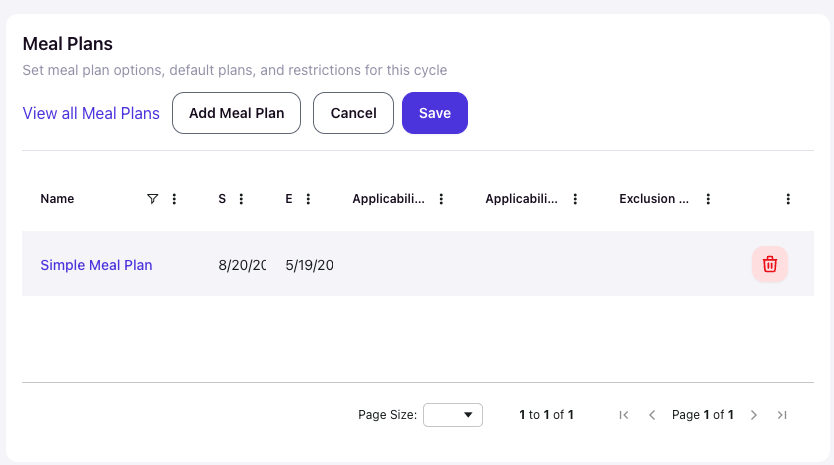
The Meal Plans card will now display a table showing all added meal plans with their Start Dates, End Dates, and tag configurations. Students will see available meal plans in their portal according to the dates and visibility rules you configured.
Verify Student Visibility
Students access meal plans in the Resident Portal under Meal Plans during the active selection window (between each plan's Start and End dates).
If students report they cannot see meal plans, verify:
- The current date falls between the meal plan's Start Date and End Date for this cycle
- Application approval settings match student status (if Require Application Approval is Yes, applications must be approved)
- Residency requirements match student assignments (if Require Residency is Yes, students need active residencies)
- Applicability tag requirements match student tags
- Students don't have Exclusion Tags that block visibility
For more information on creating the global meal plans themselves, see Create and Edit Meal Plans. For bulk meal plan assignments outside the student selection process, see Setup > Meal > Meal Plan Assignments.