Bulk Cancel Meal Plans (Limited Release)
Last updated: August 28, 2026
The bulk cancel meal plans action lets you cancel multiple meal plan assignments at once. Use this when you need to cancel assignments for a group of students—for example, after a policy change, at the end of a term, or when correcting assignment errors.
Bulk canceling applies the same cancellation settings to all selected assignments, including refund rules, flex points handling, and optional charges. The system processes cancellations in the background and notifies you when complete.
Only meal plan assignments that are active can be canceled. Assignments that are already canceled or expired will be skipped automatically.
Select Meal Plan Assignments
You can cancel meal plans from either the Meal Plan Assignments table or the Applicants table.
From the Meal Plan Assignments Table
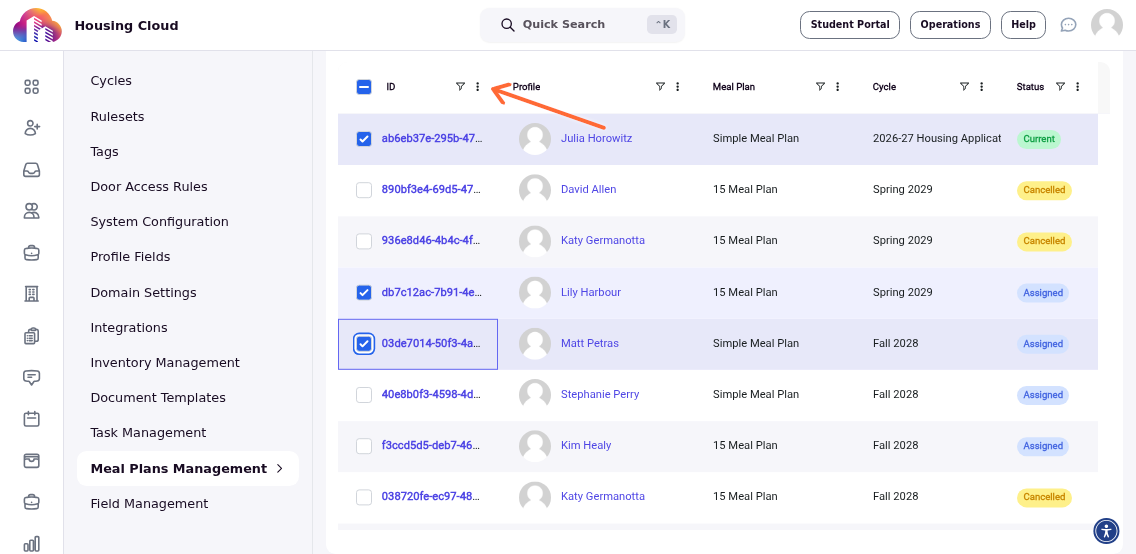
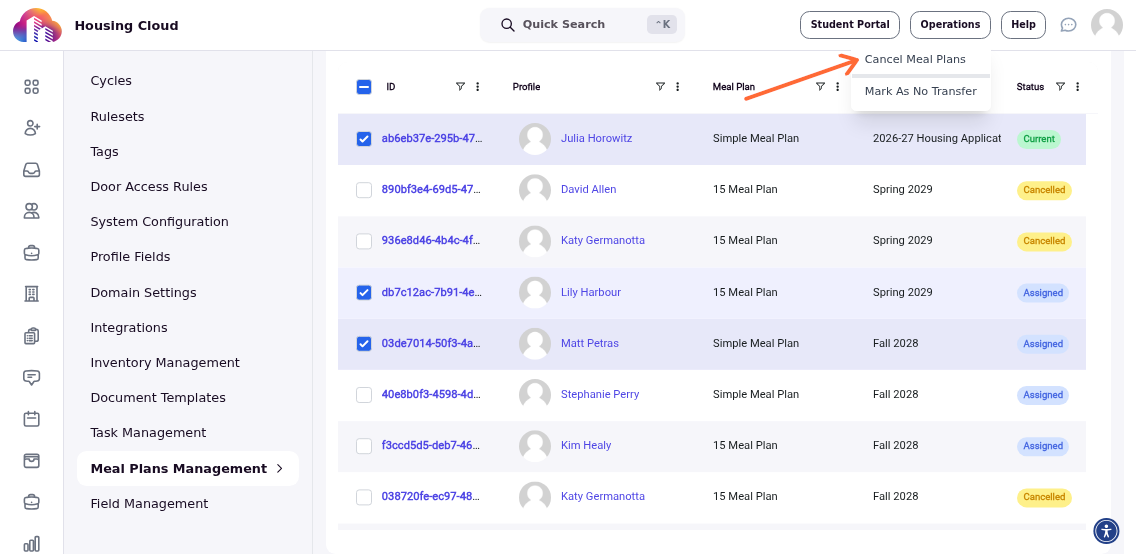
Navigate to your Meal Plan Assignments table. Use the checkboxes in the table to select the assignments you want to cancel.
You can select individual assignments or use Select All to choose all filtered results. Once you've selected assignments, click the bulk actions menu (three dots) and choose Cancel Meal Plans.
From the Applicants Table
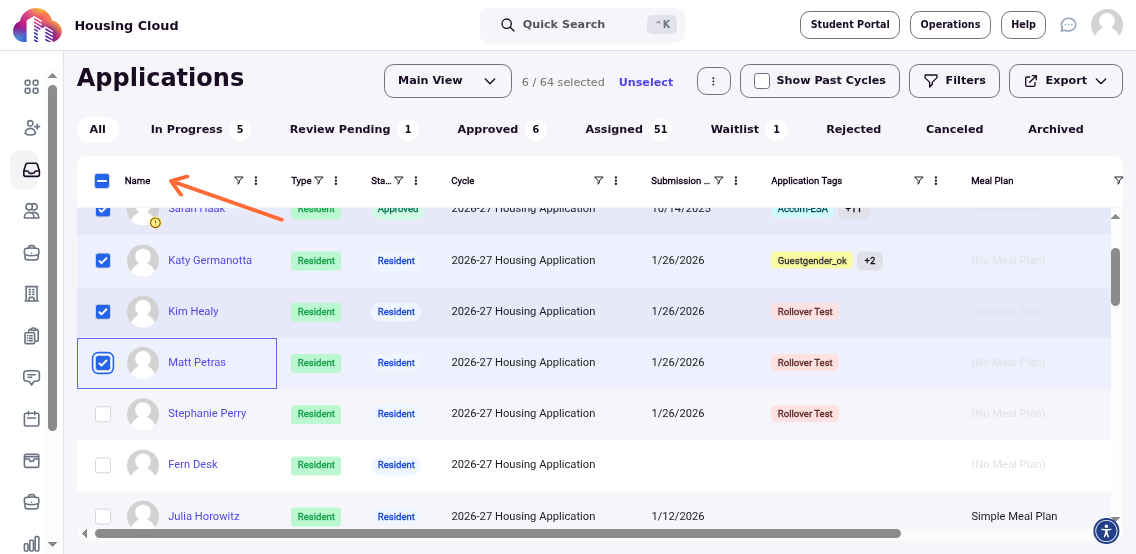
Navigate to the Applicants table. Use the checkboxes to select applicants whose meal plans you want to cancel. The bulk actions menu will appear once you've selected one or more applicants.
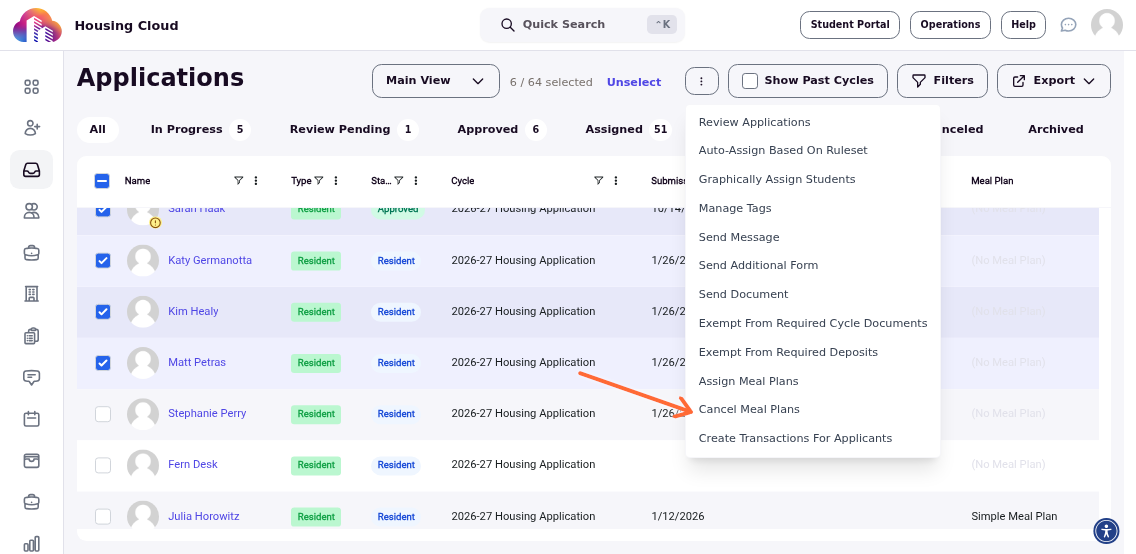
Click the bulk actions menu (three dots) and choose Cancel Meal Plans. The same cancellation workflow will open.
Configure Cancellation Options
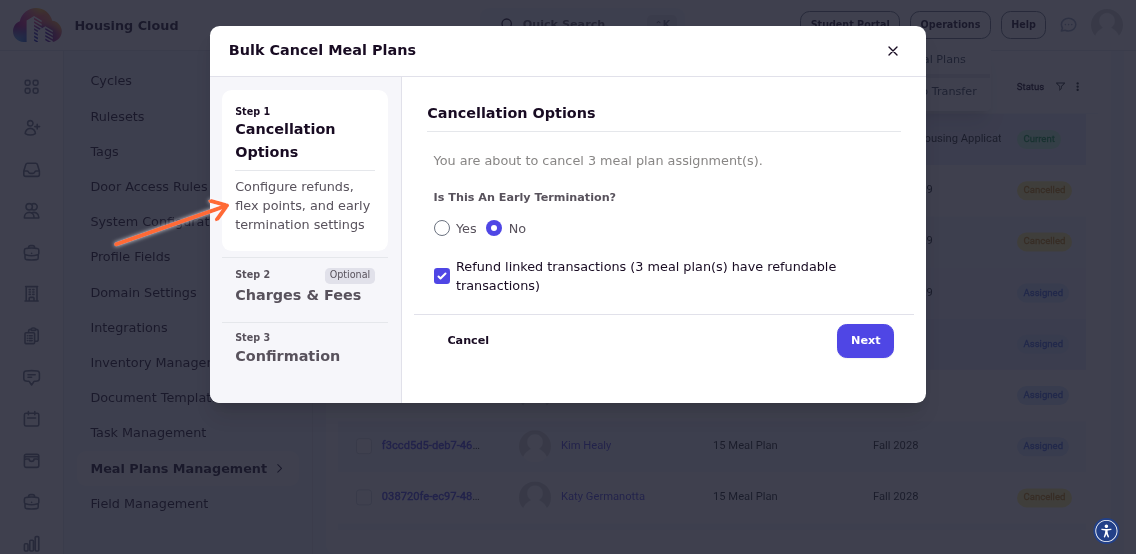
The cancellation modal walks you through three steps: cancellation settings, optional charges, and confirmation.
In the first step, choose how to handle the cancellations:
- Refund transactions – Checked by default. Unchecking this will cancel the assignment but leave existing charges in place.
- Cancel flex points – Check this to remove any unused flex points from the meal plan.
- Early termination – Choose whether this is a standard cancellation or an early termination before the assignment end date.
Add Charges or Fees (Optional)
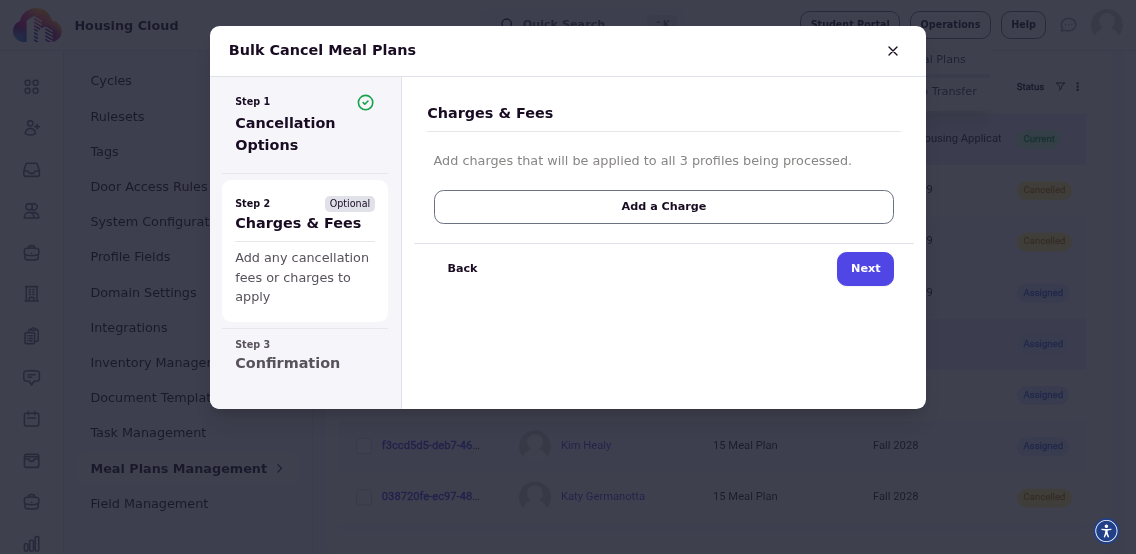
In the second step, you can add a charge or fee that applies to each canceled meal plan. This is useful for early termination fees or administrative charges. Leave this blank if no charges apply.
Confirm and Complete
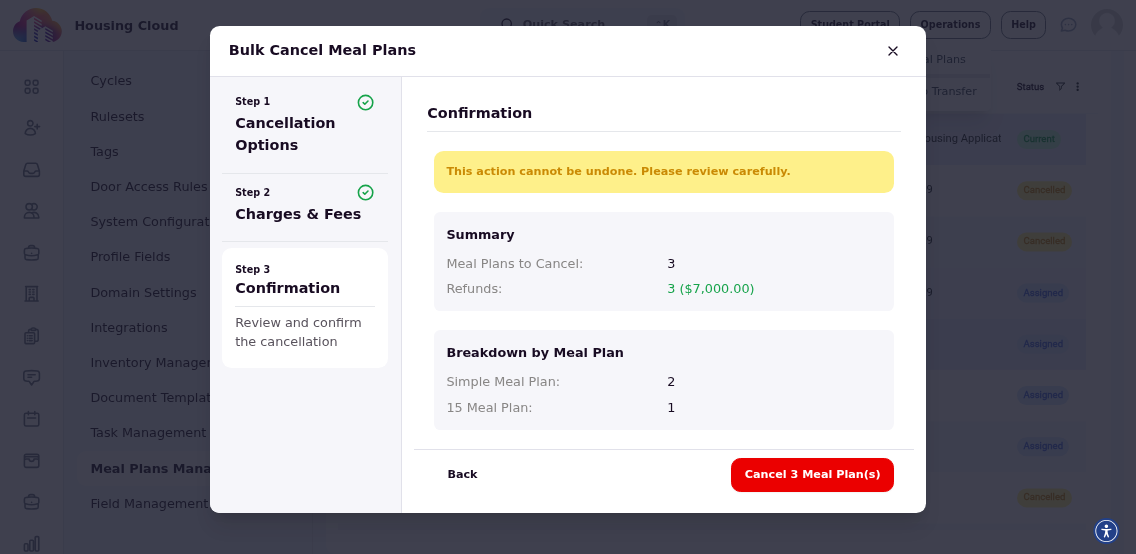
The final step shows a summary of the cancellations you're about to process, including the number of assignments and the settings you've chosen.
Review the details and click Confirm to submit.
The system processes the cancellations in the background. You'll receive a notification when all cancellations are complete. Any assignments that couldn't be canceled (already canceled or expired) will be skipped, and you'll see a summary of skipped items.