Quick Search Overview
Last updated: August 28, 2026
Quick search allows admins to instantly locate records, launch actions, and navigate to key pages in the system without clicking through multiple menus. It’s built for speed and efficiency, returning results from across profiles, applications, residencies, inventory, keys, tasks, and even help center articles — all from a single search bar.
This is especially valuable if you frequently visit the same areas of the system. Over time, you can build a personal workflow that lets you jump straight to the pages you need, reducing time spent navigating.
Access Quick Search
Click the Quick search bar at the top of the screen. It’s available from every page in the admin portal, so you can open it no matter where you’re working.

The Quick search window will appear in the center of your screen, ready for you to enter a search term.
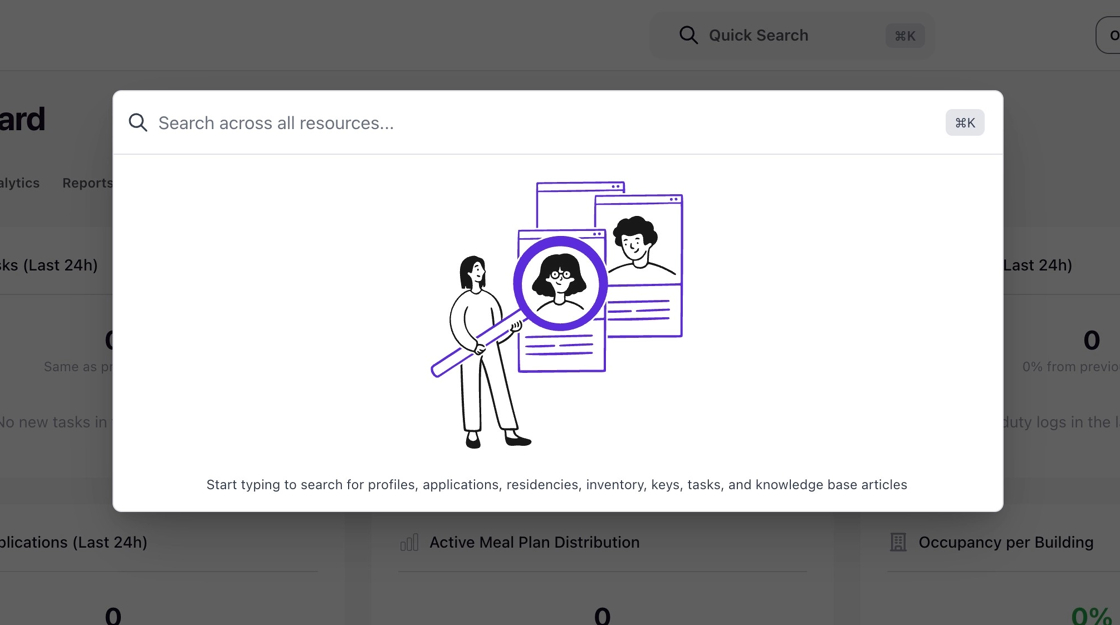
Quick search will return results from multiple areas, including:
- Profiles (student or staff records)
- Applications (by cycle and status)
- Residencies (including hall, room, and bed details)
- Inventory (beds, furniture, and types)
- Administrative pages (such as cycle setup or tag management)
-
Help articles from the Housing.Cloud knowledge base
Search for a Record or Page
Begin typing your search term.

Click on any result to open it directly or reveal available actions for that record type.

Launch Actions from Search
If a record supports quick actions, an actions will appear. Click the action to perform it immediately without opening the full record.

Available actions depend on the resource type and may include:
- Viewing the full profile
- Editing profile fields Assigning a bed
- Adding tags
- Assigning a meal plan
- Impersonating a student
- Sending messages
Use the back arrow to return to your full search results if needed..

Navigate to System Pages
Quick search is not limited to specific records. You can also use it to jump directly to high-traffic admin pages such as cycle setup, furniture management, or key inventory.
Click one of these results takes you straight to that page or directly to the action skipping traditional navigation.

Close Quick Search
When you’re done, close Quick search without making a selection by clicking anywhere in the darkened background outside the search window, or press Esc on your keyboard.
