Run a Report and Read the Results
Last updated: August 28, 2026
Running a report shows live results from your current housing data. Once a report is showing live results, you can review, export, or share them. This article covers how to run a report, how to read each state of the results grid, and what the 10,000-row limit means for your results.
Run a Report
Open a report and click Run to execute its current setup and fill the Results panel. For example, open a “Current occupancy by building” report and click Run to see how many beds are filled in each building right now.
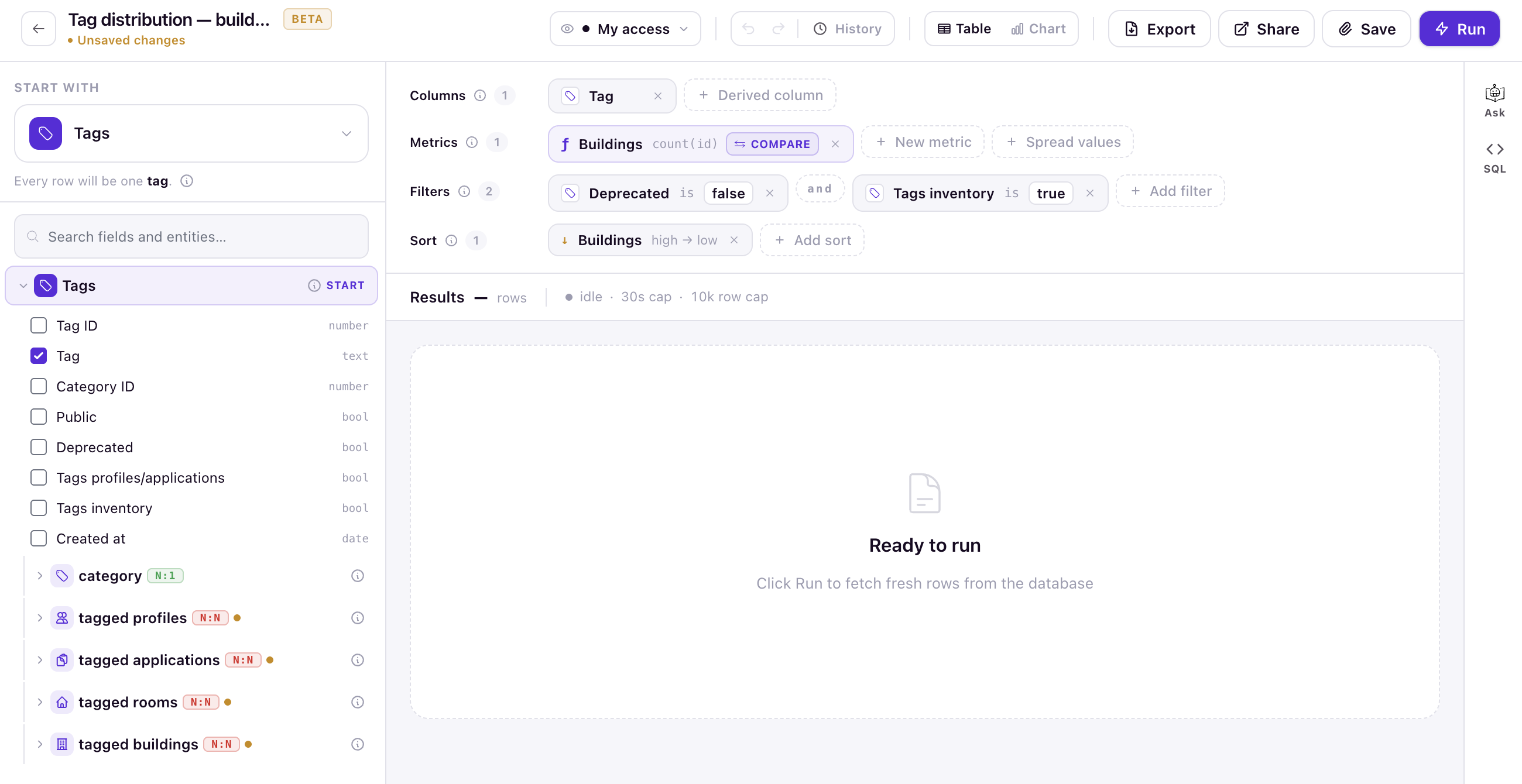
The report’s last-run time updates when you run it. Running a report does not count as an edit, so you can run a report you only have permission to view.
See Results as a Table or Chart
Results appear as a table — the grid — by default. The same report can also be shown as a chart on the same setup. For chart options, see Add Charts to a Report.
Read the Results Grid
After you run a report, the Results panel shows one of these states:
- Idle — you haven’t run the report yet.
- Loading — the report is running.
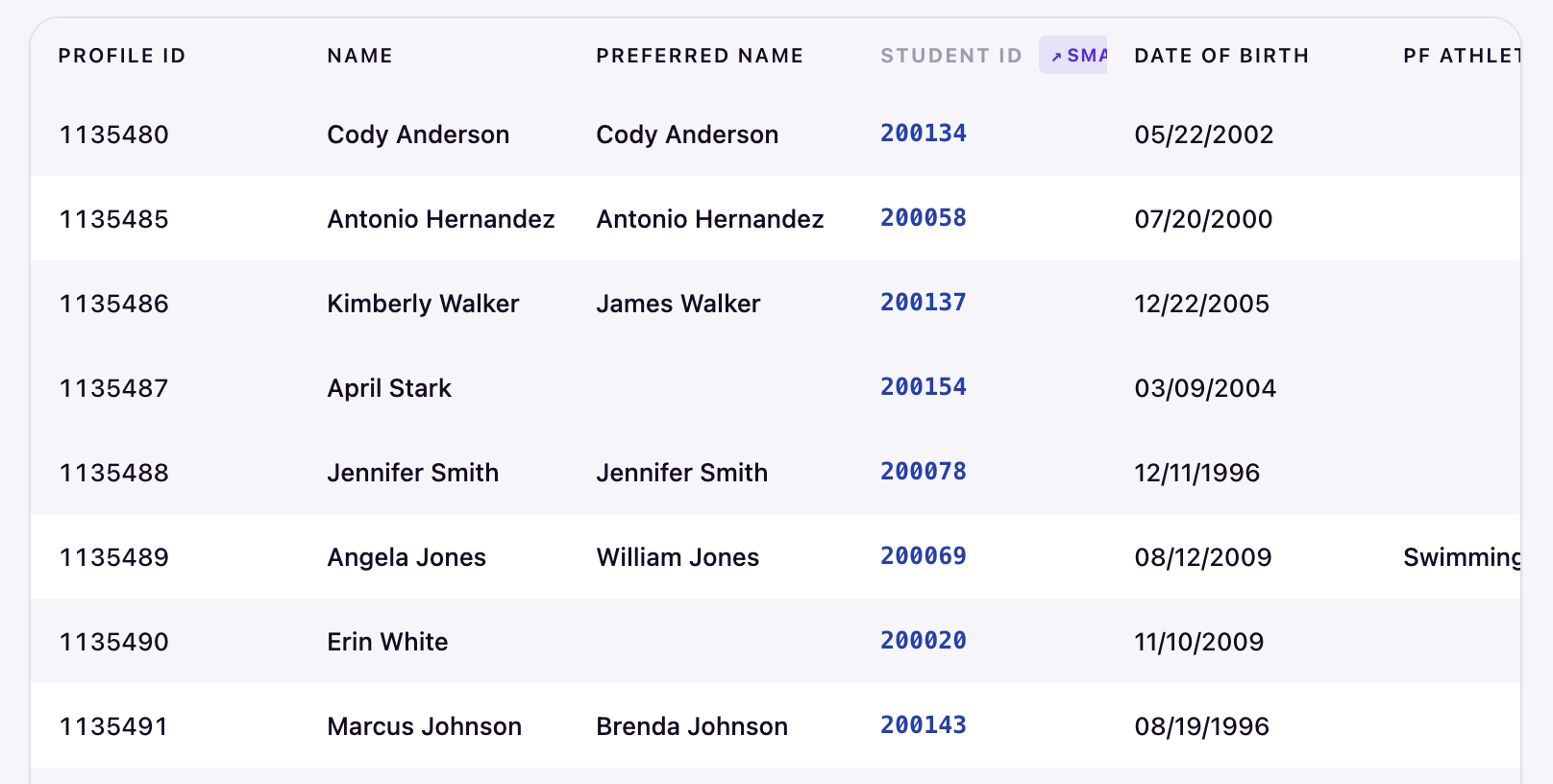
- Live — results are shown in the grid.
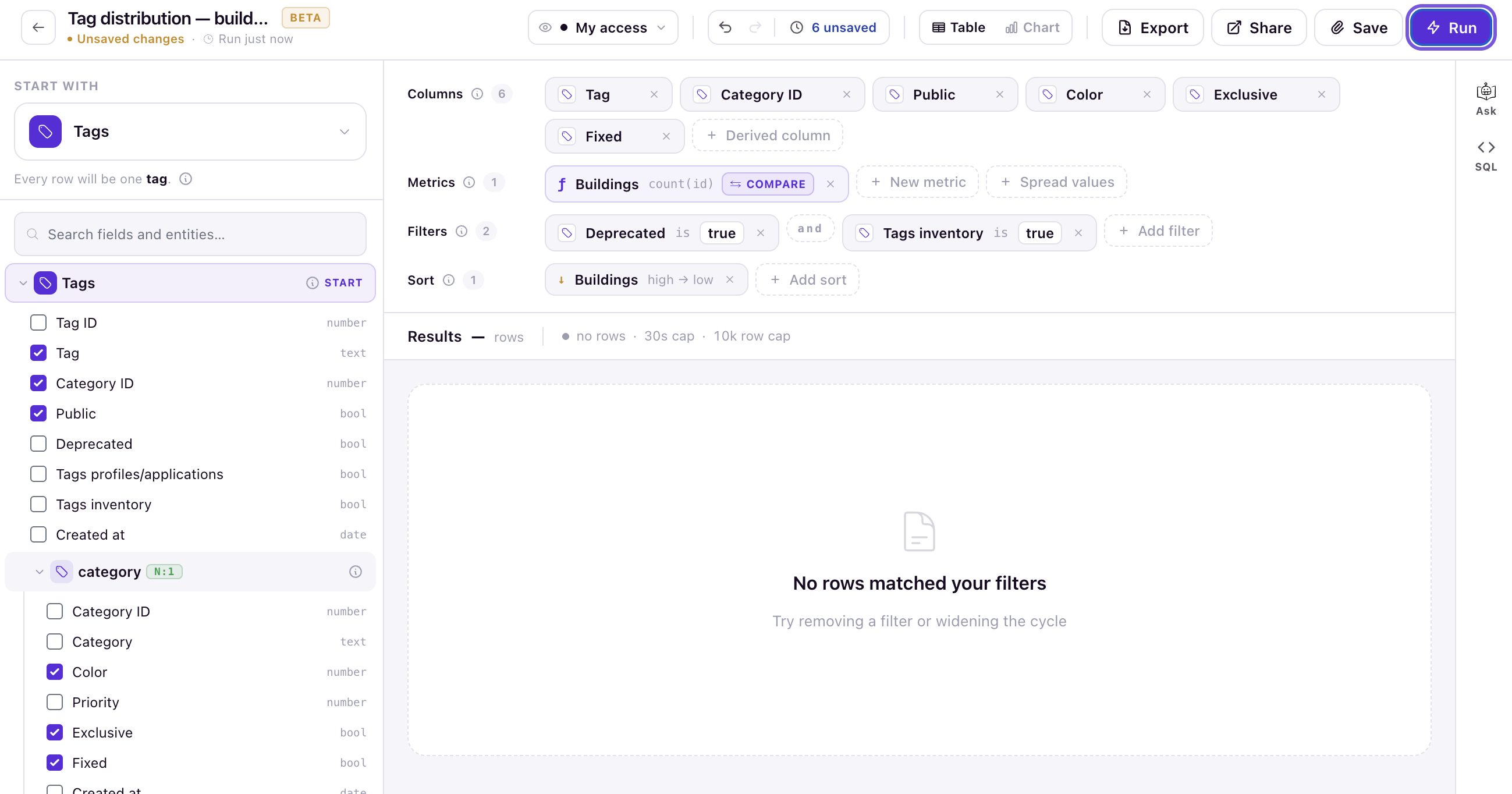
- Empty — the report ran, but no rows matched. Your filters may be too narrow.
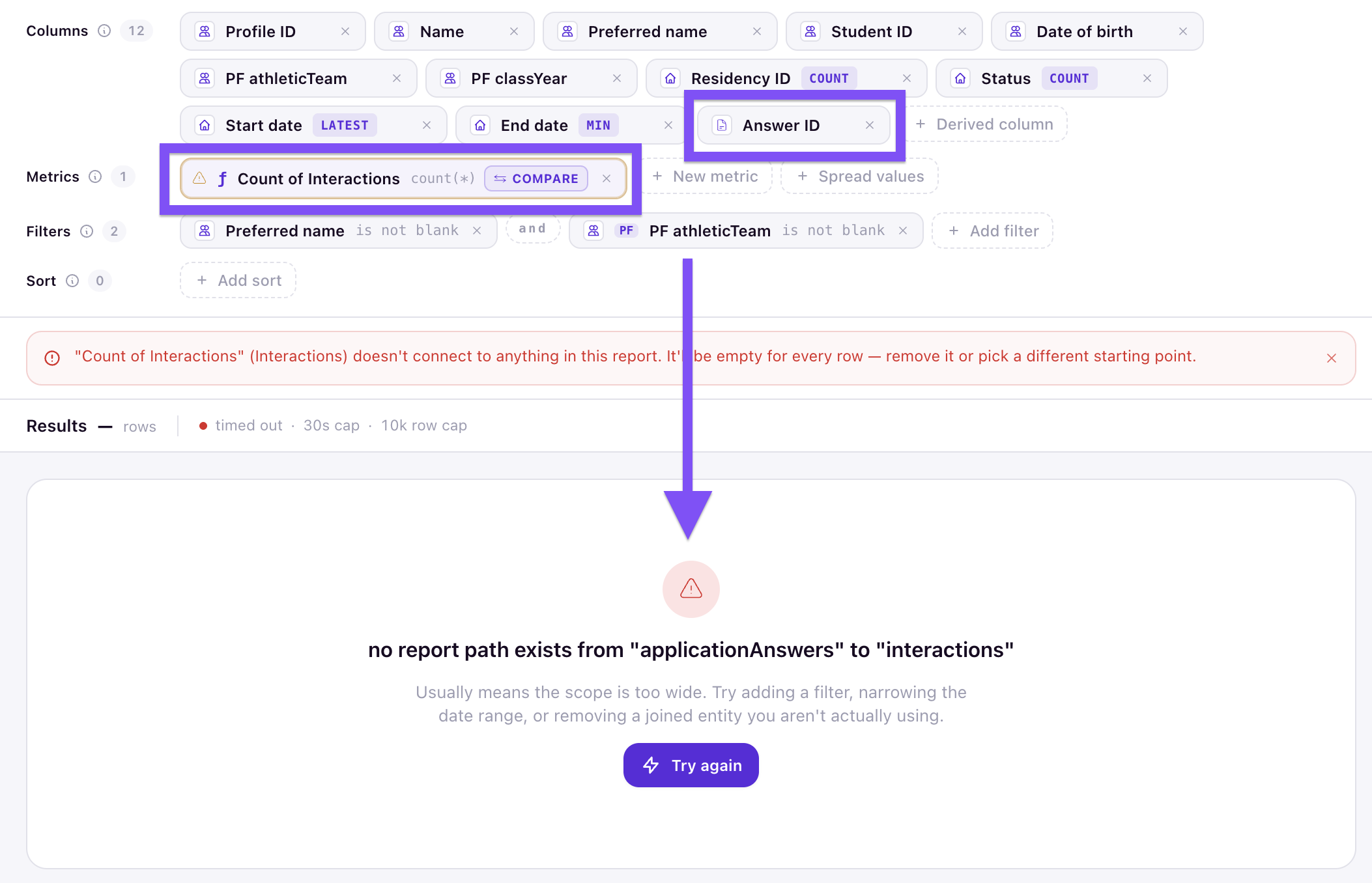
- Error — the report couldn’t run. See Troubleshoot Report Errors and Warnings.
- Truncated — the report matched more rows than the grid can show.
When results are live, the grid fills with matching rows and columns:
When no rows match, the grid shows an empty state:
When a report fails to run, the grid shows an error state:
Row Limit and Truncation
A report returns at most 10,000 rows. If a report would return more, you see the first 10,000 rows and a truncation warning.
Caution: A truncated report is not the full picture, and exporting it includes only the rows shown. Add filters to narrow the report so the rows you care about fall within the limit.
What’s Next
- Change what a report shows — see Build a Report.
- Export results or schedule delivery — see Export a Report and Schedule Reports.
- Resolve an error or warning — see Troubleshoot Report Errors and Warnings.